


How to Ask for Google Reviews and Reply to Them
A big part of my job is asking clients what they think. Does this page sound like you? Did I miss anything? You'd think I'd be used to it by now, and mostly I am, but there's still a tiny pause before I hit send. So if asking your customers for Google reviews feels a little awkward, I get it.
Here's the short version: Google reviews are where people check you out before they ever call. Asking for them is allowed, even encouraged, as long as you ask everyone and keep it honest. The rest is picking a good moment and having your link ready.
Google tweaks its tools and rules now and then, so I've linked to its own help pages throughout. Everything here is current as of November 2026.
Why Google Reviews Matter for Local Businesses
Reviews are a powerful thing. They show up right next to your Business Profile on Search and Maps, so they're often the first thing a stranger reads about you. Google also says more reviews and positive ratings can help your local ranking.
A few reviews won't cut it, though. In BrightLocal's 2026 Local Consumer Review Survey, 74% of consumers said they look for reviews written in the last three months. A glowing review from 2023 is nice, but it isn't doing much for you now.
And a perfect score isn't the goal. According to Google, a mix of positive and negative feedback often feels more trustworthy. Personally, a real 4.7 with thoughtful replies tells me more than a short row of five stars.
One thing comes first: you need a verified Business Profile before you can reply to reviews. If you haven't set one up yet, start with our guide to setting up your Google Business Profile.
Find Your Google Review Link and QR Code
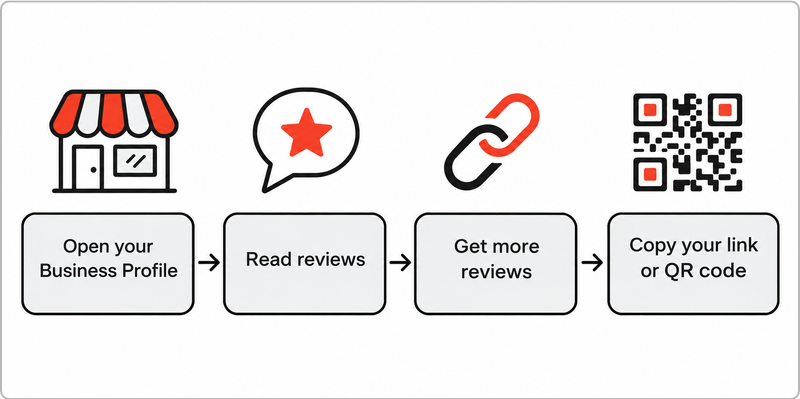
Every Business Profile comes with a free review link and QR code that open straight to the review form. Here's where to find them, following Google's instructions:
-
Go to your Business Profile on a computer.
-
Select Read reviews, then Get more reviews.
-
Select Copy to grab the link, or right-click the QR code and choose Save image as.
-
Save both somewhere you'll find them again, like the notes app on your phone.
Do this part on a computer. The QR code only generates in a desktop browser, not on your phone.
A quick heads-up about your customers: they'll need to sign in with a Google Account to leave a review, but that doesn't mean they need Gmail. Anyone can create an account with an email address they already have, like a Yahoo or work address. If someone says they "don't have Gmail," that's good to know.
How to Ask for Google Reviews
The simplest way to ask is to share your review link with every customer at a natural moment, in your own words.
Ask Every Customer the Same Way
Older advice, including an earlier version of this very post, said to ask only your happiest customers. Google's review policy bans that kind of selective asking.
So ask everyone who's had a real experience with you, and let them say what they honestly think.
Pick a Natural Moment to Ask
Timing does a lot of the work. Ask while the experience is still fresh, like at checkout or when you send the final invoice. For a nonprofit, the thank-you note after a program or event is a natural fit.
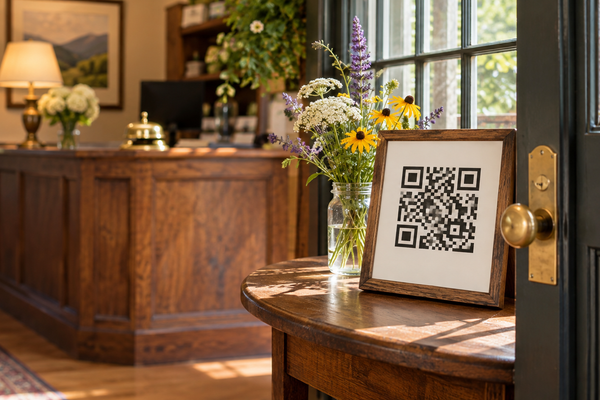
Then let people write on their own time. Google asks businesses not to pressure anyone into reviewing while they're still on the premises, so skip handing a tablet across the front desk. A small sign with your QR code by the door does the job without the hovering.
Google also suggests a few spots for your link, like thank-you emails and receipts.
Ask by Email or Text
Email works well when you're already sending something, like an invoice or a booking confirmation. Put the link near the end, after you've said thanks, so it reads like a friendly invitation. Use their name and mention something specific about their visit or job.
Text works best with people you already text, like a client you coordinated a job with. Keep it short enough to read at a glance, with the link at the end. And only text people who've given you their number for that kind of contact.
Let Your CRM Send the Ask
If you use a CRM (customer relationship management software) or a booking or invoicing system, it can send the request for you. Many can send a message automatically when a job is marked complete or a guest checks out, with the customer's name and your review link filled in. That way nobody slips through the cracks during a busy week.
One setting matters more than the rest: send it to every customer. Some review tools ask "How did we do?" first and only pass the happy answers along to Google, which is exactly the selective asking Google's review policy bans. I'd also wait a day or two, so the message lands once the job is wrapped up or the guest is home.
Two Short Scripts to Borrow
In person:
"Thanks so much for being here. If you have a minute this week, we'd love a Google review. Honest feedback helps other people find us."
By text or email:
"Hi [name], thanks again for [joining us / trusting us with the job]. If you're up for it, here's a link to leave a Google review: [link]. Whatever you share helps the next person decide. Thanks, [your name]"
Neither one asks for five stars or tells people what to say. That's on purpose.
What Google Won't Let You Do
Google's review policy is strict. Fake engagement gets removed, and breaking the rules can lead to restrictions on your profile. Businesses can't:
-
Offer anything in exchange for a review, including discounts or free goods or services.
-
Ask only the customers they expect to be happy.
-
Pressure people to write a review while they're still on-site.
-
Tell customers what to say in their review.
-
Set review quotas for staff, or ask staff to collect reviews that mention them by name.
A quick note for tourism and hospitality teams: Tripadvisor, Facebook and other review sites have their own rules. Check each one before you ask for reviews there.
What This Looks Like in Practice
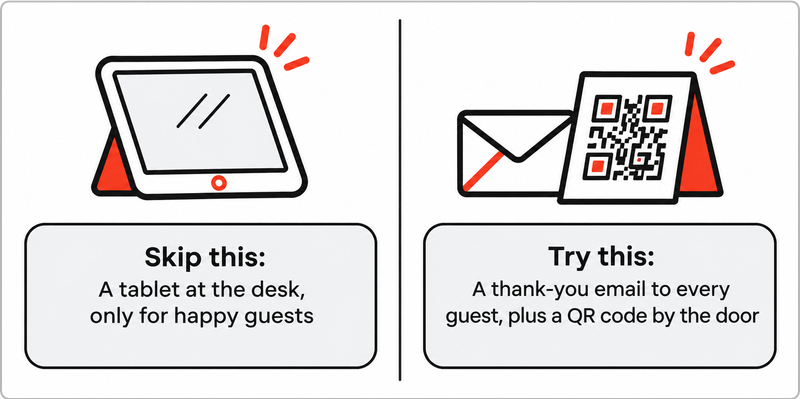
Say you run a six-room inn. There's a tablet at the front desk, and you only bring it out when a guest seems really happy. That's two of Google's rules broken before breakfast.
Now try it this way. Your booking system sends every guest a short thank-you email the day after checkout, with your review link at the bottom. A framed QR code sits by the door for anyone who wants it, and nobody gets put on the spot.
How to Reply to Google Reviews
Replies are public, so each one is also a note to the next person reading. To reply, go to your Business Profile, select Read reviews, then select Reply next to the review.
Thanking People for Good Reviews
Keep it short and specific. Thank them by name and mention something they actually said, so it doesn't read like a copy-and-paste.
"Thanks, Dana! We're so glad the fire pit was a hit. Come back when the leaves turn."
You don't have to reply within the hour. A few minutes once or twice a week keeps you current.
Replying to a Tough Review
A negative review stings, so take a breath before you answer. Google's advice is to keep the reviewer's private details out of your reply and invite them to reach you directly. A calm, kind reply may even encourage them to update their review.
For more on handling these, read The Dos and Don'ts of Dealing with Negative Online Reviews.
A Quick Check on Your Reviews
Pull up your Business Profile and count the reviews from the last three months. Then think back to the last time you actually asked someone for one. If the honest answer is "I can't remember," no worries. Save your link today and try one of the scripts this week.
Got a Question You'd Rather Not Ask in a Room?
Asking for reviews isn't the only thing that feels awkward out loud. A lot of people sit through group trainings with AI questions they never raise. If that's you, we're happy to talk them through one-on-one.
