


Visitors to Your Site Are Asking. Are You Listening?

When a new web project comes in at Eternity — a site redesign or a brand new build — part of my process is researching the client's existing site navigation structure. I like to use GA4 to understand how visitors are actually behaving: where they're navigating, where they're dropping off, and what patterns or disconnects the data reveals.
However, I don't just pull the same reports every time. I bring AI in as another strategist on the project, providing it with context about the client's business alongside my initial observations. Then I ask what reports it would run.
Site search tracking comes up every time.
And almost every time, when I go looking for that report in GA4? There isn't one. Not because the data is missing. In most cases it's been quietly collecting for months. It's because GA4 doesn't build the report for you, and almost nobody knows they're supposed to build it themselves.
That's what this article is about.
What Is Internal Site Search — And Why Does It Matter?
Internal site search is what visitors type into the search bar on your website. GA4 records each of those searches as an event called view_search_results, and it captures the actual words people used.
That last part is the whole point. Someone who uses your site search isn't browsing. They arrived with a specific need, looked around, came up empty, and decided to ask your site directly.
I keep a jar of Cheerios in the kitchen for my dog Ponyboy, and he knows exactly where it lives. When he wants one, he doesn't wander around hoping something turns up. He goes and parks himself in front of that jar and waits for me to notice. And hopes.
A site search is the same move. It's a specific ask, made on purpose, and it only counts for anything if someone's in the room paying attention.
Most analytics tell you how people found your site. Internal site search tells you what happened after they arrived, and where your site left them empty-handed.
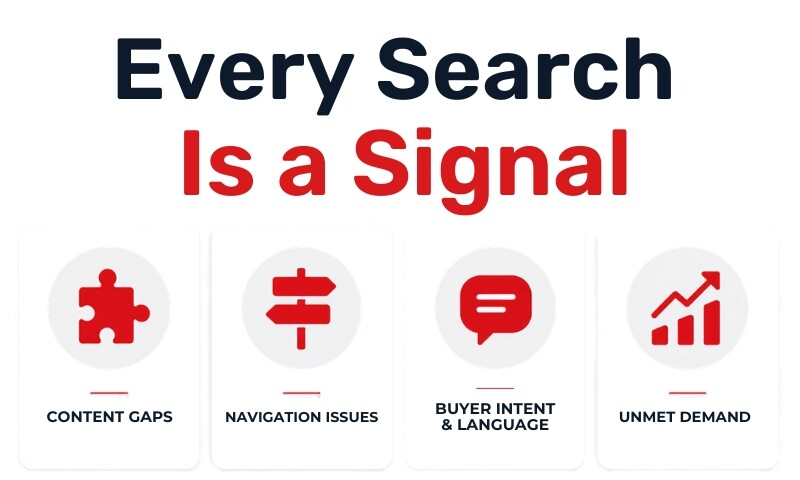
What Your Visitors Are Trying to Tell You
The data that surfaces in a site search report tends to fall into a handful of patterns. Each one points to something actionable.
Content gaps worth filling
If visitors are repeatedly searching for information, resources or explanations that don't exist on your site, that's a content gap. You have an audience already asking for it. They've told you what's missing.
Navigation that isn't working
When someone searches for something that is on your site — a page that exists, a service you offer — that's a navigation signal. The information is there. They just couldn't find it. That points to a menu structure, page hierarchy or labeling issue worth investigating.
Language your visitors actually use
Your site probably uses the terminology your industry uses. Your visitors may use something entirely different. Site search data often surfaces the exact words and phrases your customers use when they're looking for what you offer. That language belongs in your copy, your headings and your metadata, because it's what they're typing into Google too.
Unmet demand for products or services
Sometimes visitors search for something you don't offer yet — a product feature, a service tier, a capability beyond your current scope. Repeated searches for the same thing signal real market interest, even if you're not ready to act on it today.
Friction before a conversion
A visitor who searches for "pricing," "cost," or "how much does X cost" right before leaving your site is telling you something specific: they wanted to know what you charge, couldn't find it easily and may have left because of it. That's a conversion problem with a clear fix.
Why You've Never Seen This Data
Here's the part that surprises most people: GA4 has almost certainly been tracking your site searches this entire time.
Site search is part of Enhanced Measurement, which is switched on by default when a GA4 data stream is created. GA4 watches for five common URL query parameters — q, s, search, query, and keyword — and logs a search event whenever one of them appears. No setup required. Google's own documentation spells this out.
So why does it feel like the data doesn't exist?
Because GA4 doesn't give you a site search report. Universal Analytics had one. GA4 collects the same information and then leaves it sitting in a dimension you have to go looking for on purpose. There's no alert, no prompt, no nudge. If you don't know it's there, you'll never trip over it.
There are two situations where the data genuinely isn't being collected:
- Your site uses a different query parameter. If your search URL reads something like
?term=or?find=, GA4 isn't watching for it yet. Quick fix, covered below. - Your search doesn't change the URL at all. Some search tools return results without a URL change. GA4 has nothing to detect, and you'd need a custom event set up through Google Tag Manager.
Neither of these is a criticism of anyone who hasn't caught it. It's a gap in how GA4 communicates what it's already doing.
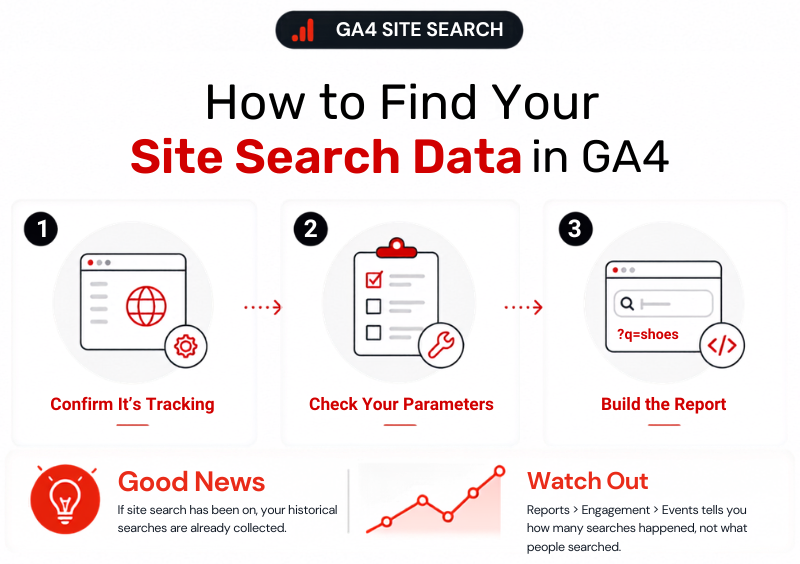
How to Check Your Site Search Tracking
Before you start, you'll need Editor or Administrator access to your GA4 property. Google requires Editor-level permissions at minimum to change these settings.
You'll also need to know what your site's search query parameter looks like. This is the letter or word that appears in your URL after someone runs a search, typically something like ?s=, ?q=, or ?search=. You can find it by running a test search on your own site and looking at the URL that appears.
Step 1: Find your search parameter
Run a search on your own site and look at the URL. You're after the word or letter immediately before the equals sign that's followed by what you typed. In yoursite.com/?s=gift+cards, that's s. Careful here — the search parameter isn't always the first one. In ?category=shoes&q=running, it's q.
Step 2: Open Your Data Streams
Go to analytics.google.com and select your property. In the left menu, choose Admin. Under Data collection and modification, click Data streams, then select your web stream.
Step 3: Confirm Enhanced Measurement Is On
Inside your data stream, you'll see an Enhanced Measurement toggle in your stream details. Click the gear icon beside it to open the individual settings.
Step 4: Confirm Site Search Is On
Scroll down until you see Site search and check the toggle. This is on by default, so you're most likely verifying rather than enabling. If someone switched it off at some point, turn it back on.
Step 5: Enter your query parameter
Add your parameter if it isn't covered
If your parameter is q, s, search, query, or keyword, you're done. If it's anything else, click Show advanced settings under Site search and add it to the Search Term Query Parameter field, separated from the existing entries by a comma. You can list up to ten. There's a separate Additional query parameters box if you also want to capture things like category filters.
Step 6: Save
One thing worth checking while you're in there. If tracking has been running all along, your historical searches are already collected. But GA4's Explorations only reach back two months by default. You can extend that to fourteen under Admin → Data retention. Standard reports aren't limited the same way, but if you plan to build an Exploration, that setting is worth changing now — it's not retroactive, so it only protects data going forward. (Our post on tracking AI search traffic covers this same retention trap.)
How to Build the Report GA4 Doesn't Give You
This is the step that's missing, and it's the reason all this data goes unread.
First, confirm the event is firing. Go to Reports → Engagement → Events and look for view_search_results in the list. If it's there, you have data.
That report only tells you how many searches happened, though. The actual words live in a dimension called Search term, and you have to build something to see them:
- Go to Reports → Library
- Click Create new report, then Create detail report, and choose Blank
- Under Dimensions, add Search term
- Under Metrics, add Event count
- Add a filter where Event name exactly matches
view_search_results - Save it, give it a name you'll recognize, and add it to a collection so it appears in your reports navigation
If you'd rather not publish a report to your whole team, an Exploration using the same dimension and filter works too.
Give it two to four weeks of data before drawing conclusions, longer if your traffic is light. And if you just changed a setting, wait a day — GA4's standard reports run on a 24 to 48 hour processing delay.
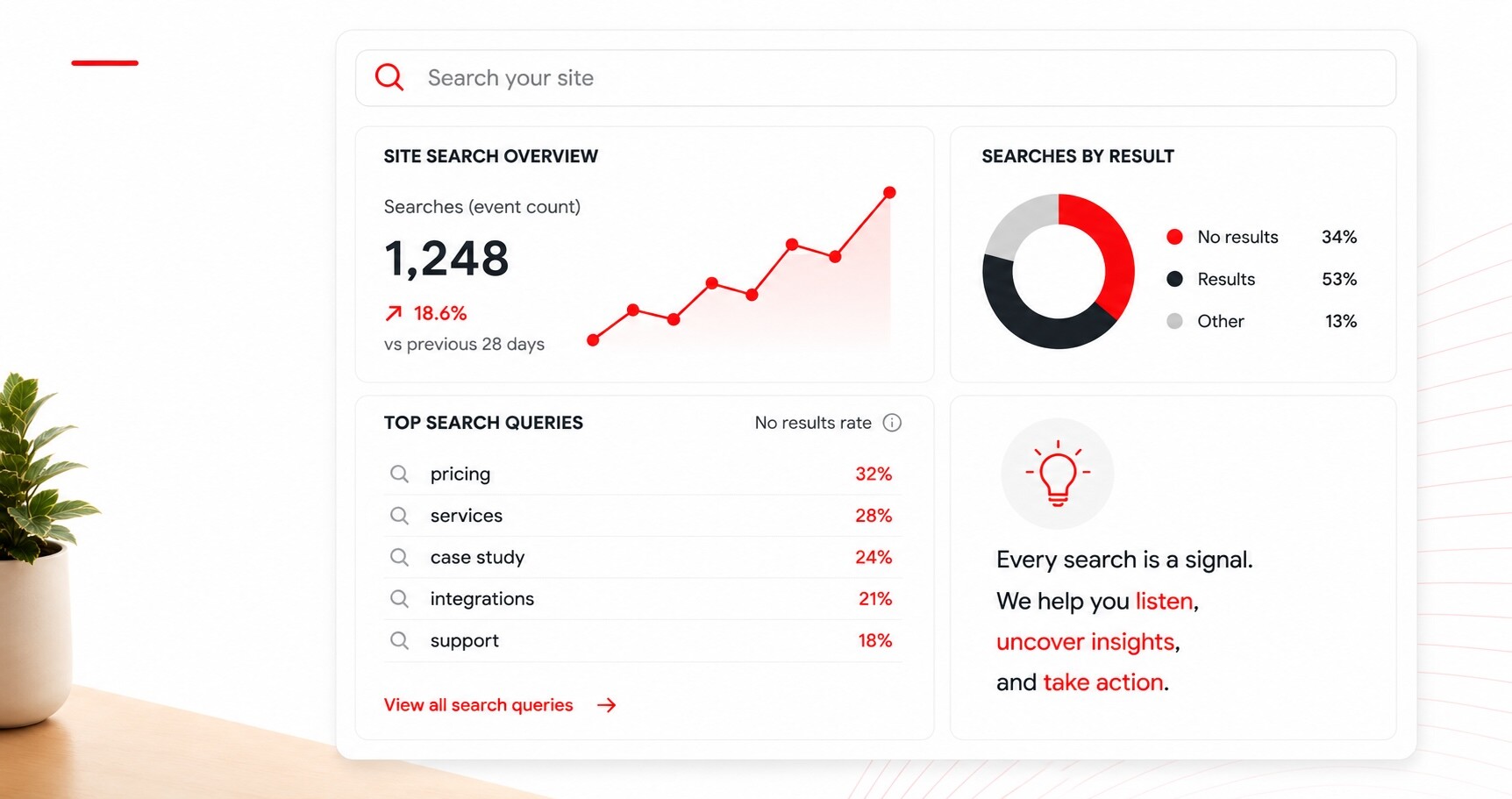
What to look for:
-
High-frequency terms: queries that appear repeatedly are your highest-priority signals
-
Terms with no results: if your site search returns nothing for a common query, that's a content or product gap
-
Terms that match existing pages: if visitors are searching for something you already have, your navigation needs attention
-
Terms that also appear in Search Console: when someone searches your site, doesn't find it, then Googles your brand name plus that thing, you'll see it in both places. Those are your priority fixes.
A quick heads-up on a metric you might reach for and not find: GA4 doesn't have an exit rate. Universal Analytics did, and it hasn't come back — it isn't available in standard reports, Looker Studio, or calculated metrics. If you want to see where sessions end after a search, build a Path exploration instead.
Review this report monthly as part of your regular analytics check. The patterns that emerge over time are often more useful than any single week of data.
Want to Know What Your Visitors Can't Find?
A website audit can surface exactly that. The reports that matter most for understanding visitor behavior — including site search — are rarely all set up out of the box. Knowing what to look for, and what's missing, is where the useful work begins.
Curious What Your Site Search is Hiding?
Request a website audit from Eternity to get a clearer picture of what your site is — and isn't — telling you.

Frequently Asked Questions
